
How to export a WhatsApp chat and open the file
Export chat in WhatsApp turns one conversation into a file you can keep: a txt with the messages, or a zip with the txt plus photos, videos and voice notes. Below are the steps, what each choice gives you, and how to open the file as a readable chat instead of a wall of text.

Back in 2020 someone on r/whatsapp exported a chat full of photos and voice notes and ended up with a txt, plus a pile of audio files they had to match to the messages one by one. They wanted a comfortable way to read it, and they did not want to send their chat to some stranger's server to get it. The thread drew 42 comments.
How to export a WhatsApp chat
WhatsApp then asks whether to include media. Without media you get a single txt. With media you get a zip holding _chat.txt and the photos, videos and voice notes from the chat. Menu names can shift a little between versions. Exporting makes a copy; the chat stays in WhatsApp.
With media or without?
| Choice | What you get | Good for |
|---|---|---|
| Without media | One txt: dates, times, names and messages. Photos are reduced to placeholder lines | A light record of what was said |
| Include media | A zip with _chat.txt and the media files | Keeping the photos and voice notes with the chat |
Where does the exported chat go?
This trips people up. In June 2026 someone on r/whatsapp pressed Export chat and could not tell where the file had gone. The export is handed to your phone, which then asks where to send or save it, so it ends up in whichever app or folder you picked at that moment: an email to yourself, a cloud drive, or the phone's own files. If you are not sure, export again and choose a place you can find on your computer later.
Exporting from other apps
| App | Where to export | What to drop in |
|---|---|---|
| Open the chat, then the ⋮ menu (Android) or the contact's name (iPhone) > More > Export chat, and choose with or without media | The txt, or the zip with _chat.txt and the media | |
| Telegram | Telegram Desktop: in a chat, ⋯ > Export chat history (one chat), or Settings > Advanced > Export Telegram data (many). Choose JSON or HTML | The folder with result.json or messages.html (zipped is fine) |
| LINE | Phone: in a chat, the ≡ menu > Settings > Export chat history. Windows or Mac: in a chat, ⋮ > Save chat | The txt |
 KakaoTalk KakaoTalk | Phone: in a chat, the ≡ menu > Settings (gear) > Export chats. PC: the menu at the top right of a chat > Chat history > Export | The txt, the zip with photos, or the Mac csv |
| Slack | Workspace owners and admins: Admin > Workspace settings > Security > Import & export data > Export. On Free and Pro plans only public channels are included | The export zip |
| Facebook Messenger | Accounts Center > Your information and permissions > Download your information, pick Messages and the JSON format (HTML also works) | The zip you get |
| Instagram DMs | Settings > Accounts Center > Your information and permissions > Download your information, pick Messages and JSON | The zip you get |
| iPhone Messages | Make an unencrypted backup on a computer: in Finder on a Mac, or the Apple Devices app or iTunes on Windows, select the iPhone, leave Encrypt local backup off and back up now | The whole backup folder, or just sms.db |
| Android SMS | Back up texts (and call logs) to XML with the SMS Backup & Restore app | sms-date.xml, calls-date.xml |
This table follows each app's official help, the same steps listed on the Chat Backup Viewer page. Apps change, so check the app's help if a menu has moved.
Open the export as a real chat
Drop the txt or the zip, still zipped, into the Chat Backup Viewer. It recognises the app from what is inside and lays the chat out as bubbles, with photos in place and voice notes you can play right there. Choose your name in the Me menu so your bubbles sit on the right, use Search to find a word and Go to date to jump to a day. Everything is read inside your browser; nothing is sent to a server.
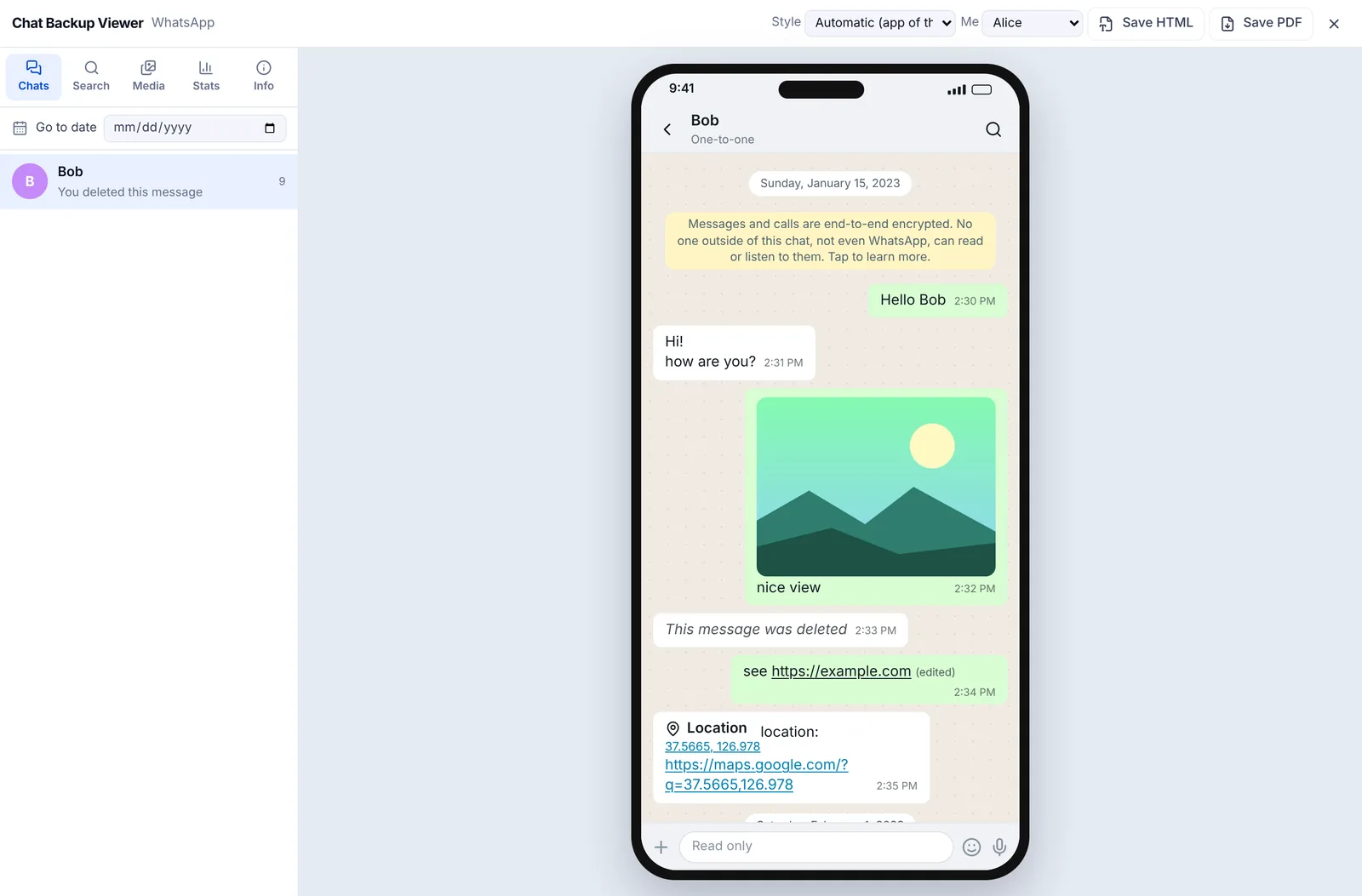
No export to hand? Try a sample opens a made up chat we wrote ourselves, so you can see how it looks first. The Media tab gathers every photo, video, voice note and file from the chat in one place, which is exactly the matching job the 2020 poster was doing by hand.
Look back with the Stats tab
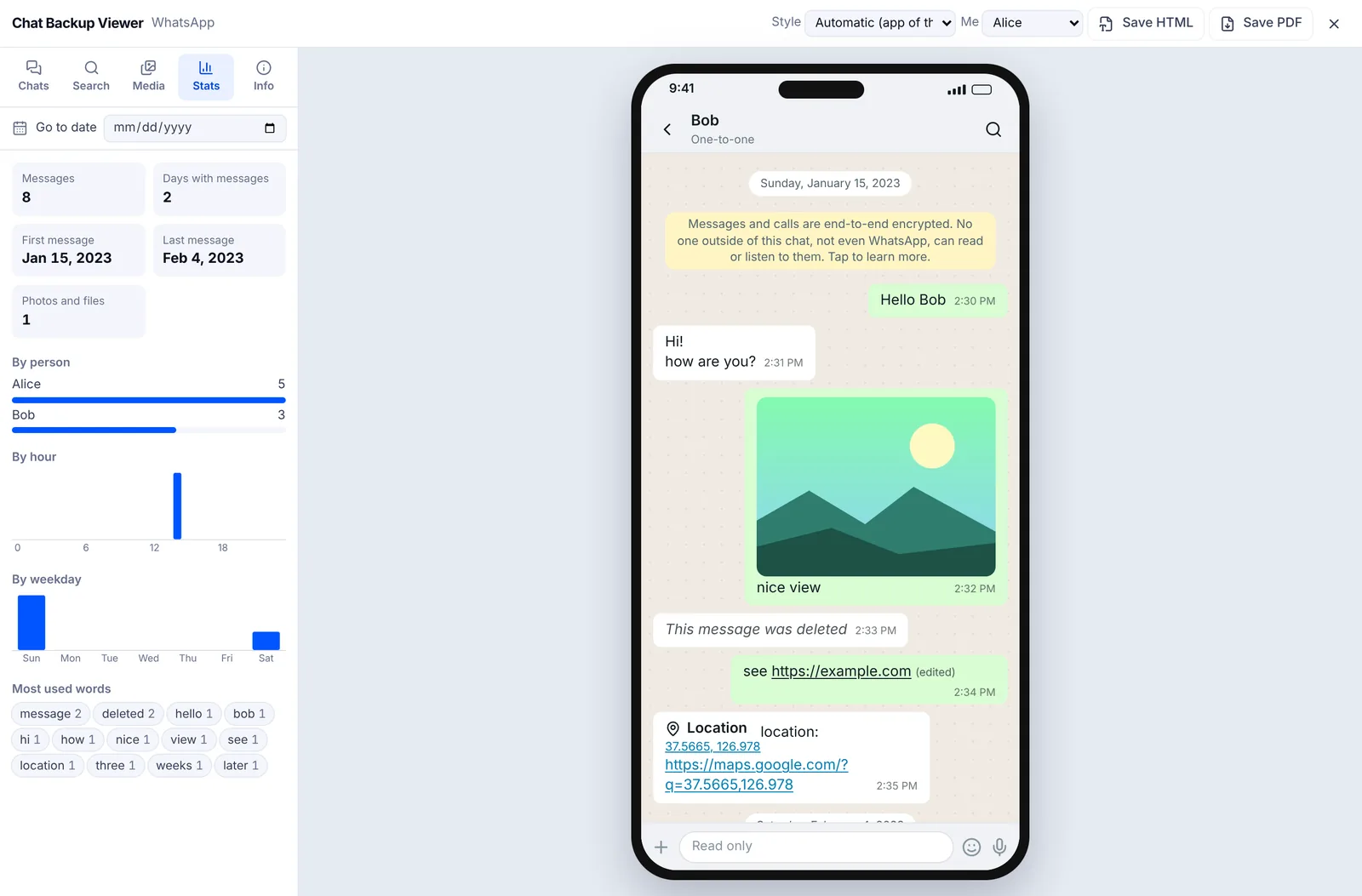
The Stats tab counts the messages and the days you talked, shows the first and last message dates, messages per person, charts by hour and weekday, and the words used most. For a chat that ran for years, it shows when it was busiest and who did most of the talking.
Putting it back, or printing it
An export is a readable copy, not a backup; we don't know of an official way to load it back into WhatsApp. For the difference between the two, see WhatsApp backup vs export chat. To turn a chat into a PDF you can print, with dates on every page, see chat to PDF.
WhatsApp, Facebook Messenger and Instagram are trademarks of Meta, Telegram of Telegram FZ-LLC, LINE of LY Corporation, KakaoTalk of Kakao, and iMessage and iPhone of Apple. Slack and SMS Backup & Restore belong to their owners. EZPZ File is not affiliated with any of them.
Frequently asked questions
- I exported a chat. Where did the file go?
- To wherever you chose in the menu that appeared right after Export chat, such as an email, a cloud drive or the phone's files. If you can't find it, export again and pick a place you will remember. (Source: Reddit r/whatsapp)
- My export has the text but the voice notes are loose files. How do I read them together?
- Export with media to get one zip, then drop the zip into the Chat Backup Viewer without unzipping it. Photos and voice notes appear in the chat where they were sent. (Source: Reddit r/whatsapp)
- Do I have to send my chat to a website to view it?
- Not with this viewer. It reads the file inside your browser and does not send messages or photos to a server.
- Can I import the exported chat into WhatsApp on another phone?
- We don't know of an official way. Use WhatsApp's backup and restore to move chats, and keep exports as records you read.
Last updated October 27, 2026
