
How to convert EML to PDF
Someone wants "that email as a PDF". All you have is a .eml file, maybe forwarded by a colleague or downloaded from Gmail, and no Outlook to open it with. Here is the quick way, the built-in ways, and what a PDF of an email does and does not keep.

The short answer: open the .eml in a browser-based viewer, press "Save as PDF", and choose "Save as PDF" as the printer in the print window. On this site that takes about ten seconds, needs no install or account, and the email stays on your computer the whole time.
One thing to know up front. No button anywhere produces a PDF out of thin air. The viewer lays the email out for printing and hands it to your browser's print window, and the browser writes the PDF. Outlook, Apple Mail and Thunderbird do the same thing underneath. Knowing that makes the steps below, and most of the problems, easier to follow.
What an EML file is, in one paragraph
An .eml is one email saved as a single file: the subject, sender, recipients, date, the body (often both an HTML and a plain text version), every attachment, and a block of technical headers that records which servers handled the message. It is a standard format, so many programs read it, but Windows does not open it by itself unless a mail program is set up. For the longer version, see What an EML file is and how to open it.
The quick way: in your browser
Step by step:
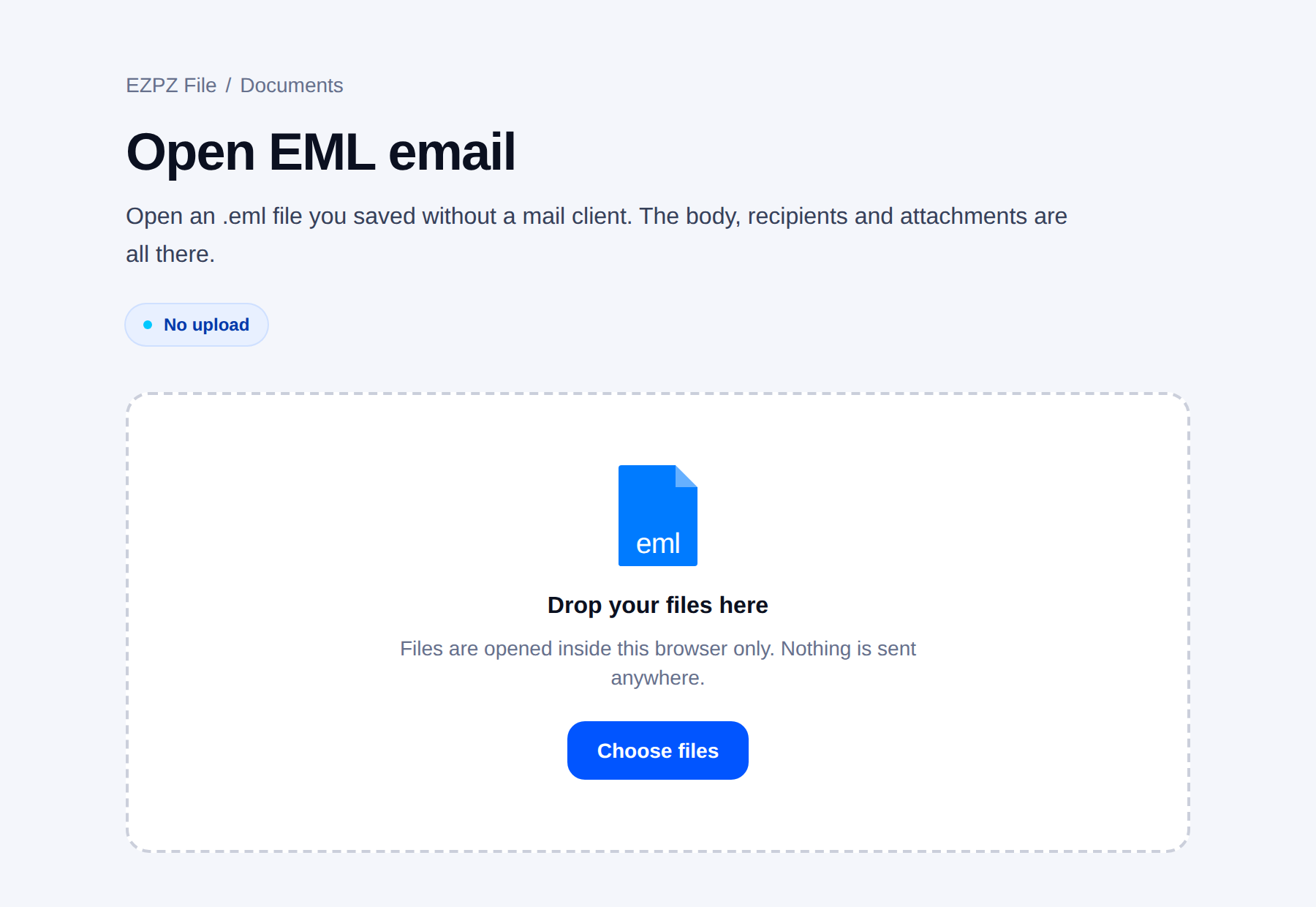
- Open the EML viewer and drop the .eml on the page, or click to choose it. The message opens with From, To, Cc, Subject and Date above the body, and the attachments listed below.
- Check that it reads correctly. If the email has both an HTML and a text version, you can switch between "HTML" and "Text". If the characters look wrong, pick a different text encoding from the menu.
- Press "Save as PDF". Your browser's print window opens.
- Set the destination or printer to "Save as PDF". In Chrome and Edge it is under Destination, on Windows it may also appear as "Microsoft Print to PDF".
- Press Save and pick a folder. That file is your PDF.
Many newsletters and marketing emails load their pictures from the web. The viewer blocks those by default, because loading them can tell the sender you opened the message. When you save such an email as PDF, it asks first: "Include images and save" loads them and puts them in the PDF, "Save without them" keeps everything offline and leaves those pictures out. Pictures carried inside the email itself always show up.
On an iPhone, iPad or Mac with Safari, the email ready for printing opens in a new tab. On an iPhone, use the share button at the top of the print screen and save it to Files. If the print screen does not appear on its own, use the share button in that tab and choose Print. To pick the .eml on an iPhone in the first place, save it to the Files app first, then choose it from Files in the viewer.
The PDF starts with the subject, then From, To, Cc, Date and the attachment list with file sizes. The body follows as it looked on screen, with its embedded pictures. Image attachments such as JPG and PNG are added after the body under "Attached images". Text stays as real text, so you can search and copy it in the PDF.
Without Outlook on Windows, Mac or a phone
If you already have a mail program, you can use it. Every option here ends in the same place: a print window where you choose a PDF printer.
| Option | What you need | How it goes |
|---|---|---|
| EML viewer on this site | Any modern browser | Drop the file, "Save as PDF", choose "Save as PDF" in the print window. Works on Windows, Mac, iPhone and Android. |
| Windows, classic Outlook | Outlook installed and set up | Double-click the .eml, File > Print, choose "Microsoft Print to PDF" as the printer. |
| Windows, new Outlook | The new Outlook app with an account signed in | Recent versions open a saved .eml. Then print and choose "Microsoft Print to PDF". |
| Mac, Apple Mail | Nothing extra, it comes with macOS | Double-click the .eml so it opens in Mail, then File > Export as PDF. File > Print > PDF > Save as PDF also works. |
| Thunderbird | A free install on Windows, Mac or Linux | Open the .eml (File > Open > Saved Message, or double-click it), then print and choose a PDF printer. |
| Online converter sites | Uploading the email to their server | Varies by service. Some add watermarks or ask for payment at the end. |
Windows
Windows 10 and 11 include a PDF printer called "Microsoft Print to PDF". Any program that can print can make a PDF with it, so the only real question is which program can show the email. Without a mail program, double-clicking a .eml often opens Notepad full of code, or asks which app to use.
Outlook on a PC is not always the answer even when it is installed. If you never use it, it opens on the account setup screen and will not show a saved file until you sign in. On a work laptop you may not be allowed to install Thunderbird either. In both cases the browser route is the shortest.
Old guides suggest renaming the file to .mht so Windows opens it in a browser. It shows the text, but it changes the original file, cannot pull out attachments, and often garbles non-English mail. Leave the file as it is.
Mac
Apple Mail opens .eml files directly and has File > Export as PDF, which is the cleanest built-in route on a Mac. Every Mac app's print window also has a PDF menu at the bottom left with Save as PDF. If double-clicking opens a different app, right-click the file, choose Open With, then Mail.
iPhone and Android
Phones usually have no app for a loose .eml file. On Android, tapping one often ends in "no app can open this file". Open the EML viewer in Chrome or Safari, choose the file, and press "Save as PDF". On Android, choose "Save as PDF" as the printer in Chrome's print screen. On iPhone, use the share button in the print screen to save to Files.
If the email is still in Gmail or Outlook.com
Then you do not need the .eml at all. Open the message in your webmail, use its print option, and save as PDF from the browser's print window. The .eml route matters when the file is all you have: a message someone forwarded as an attachment, a download from a shared drive, or an old backup. Gmail has no menu for opening a saved .eml from your computer.
Online EML to PDF converters work, but you upload the whole email to them: body, attachments, and every address in it. For invoices, contracts or anything from work, a tool that runs on your own device is the safer choice.
Attachments are a separate step
This catches people out. When you print an email to PDF, from any program, the attachments are not placed inside that PDF. In Outlook and Thunderbird the PDF shows the attachment names at most. Classic Outlook has an option to print attached files, but it prints them as separate jobs, not inside the message PDF.
| Part of the email | In the PDF from the EML viewer |
|---|---|
| Subject, From, To, Cc, Date | Yes, at the top |
| Body and formatting | Yes, as it looks on screen |
| Pictures inside the body | Yes |
| Pictures loaded from the web | Only if you choose "Include images and save" |
| JPG, PNG and other image attachments | Yes, after the body |
| PDF, Word, Excel, ZIP and other attachments | Name and size only. Save them separately |
| Technical headers (Received, Message-ID and so on) | No |
To keep the rest, use the attachment list under the message in the viewer: click a file to download it. If the attachment is another email, "Open this email" opens it in the viewer so you can save that one as PDF too. When you have opened several emails at once, "Download all attachments (ZIP)" gives you one ZIP with a folder for each email, named by date and subject.
Need the email and its PDF invoice as one file? Save the email as PDF, save the attached PDF from the list, then combine the two with the PDF merge tool. Word and Excel attachments need to be turned into PDF in their own programs first.
Converting many emails at once
Audits, handovers and disputes tend to come with requests like "every email about this project, as PDF". Opening and printing them one by one takes forever.
Drop several .eml files on the EML viewer together, pick a whole folder with "Choose folder", or drop a ZIP full of .eml files without unzipping it. The viewer turns into a mailbox: the list on the left shows sender, subject, first line and date, and the selected email opens on the right. On a phone the list and the email are two screens, and "Back" returns to the list.
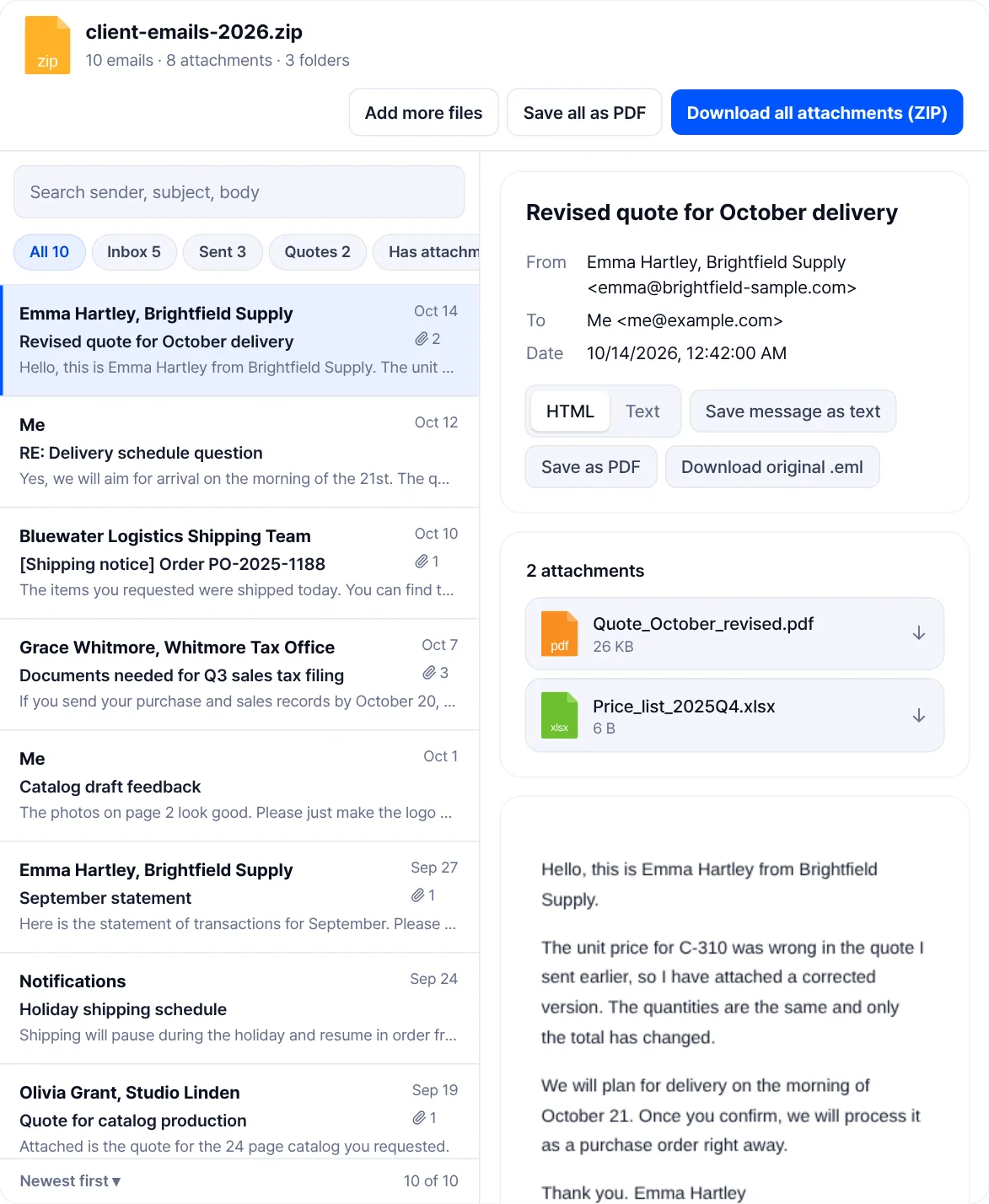
- Narrow the list. The search box covers sender, subject and body. Folders inside the ZIP or the folder you chose become filter chips, and "Has attachments" shows only emails that carry files.
- Sort it. Choose "Newest first" or "Oldest first". A thread usually reads better oldest first.
- Press "Save all as PDF". Every email in the current list goes into one print job, and each email starts on a new page. Choose "Save as PDF" in the print window and you get a single file.
- Collect the files. "Download all attachments (ZIP)" saves every attachment in one ZIP, one folder per email.
The bulk save does not load pictures from the web, so nothing reaches outside servers while it runs. Up to 1,000 emails open at once; if there are more, only the first 1,000 are opened, so split the batch. Files that are not .eml are skipped and counted.
For records and legal use: keep the original
A PDF of an email is a copy made for reading. It shows what the message looked like, but it leaves out the technical headers: the Received lines that record each server on the way, the Message-ID, and the authentication results that help show the message was not forged. Those are exactly what someone checks when the authenticity of an email is questioned.
- Keep the .eml file alongside the PDF, unchanged and with its original name. In the viewer, "Download original .eml" saves an untouched copy.
- Do not edit, forward or reformat the message before saving it. A PDF of a changed email is no longer a copy of what you received.
- Put the date and sender in the PDF file name, so it can be found later without opening it.
- Ask whoever requested it whether they want the PDF, the .eml or both. Courts, auditors and regulators set their own rules, and this article is not legal advice.
Privacy: where the email goes
Search for "eml to pdf" and most results are converter sites. You upload the file, their server makes the PDF, and you download it. That means the entire message, including its attachments and every email address in it, is stored, at least for a while, on a server you know nothing about. Some also show "free" right up to the download button and then ask you to sign up or pay.
The EML viewer reads and lays out the email entirely in your browser, and the PDF is written by your browser's own print window. It is free with no sign-up. The only outside connection it can make is loading web pictures, and only when you ask it to. For more on judging any tool, see Is it safe to upload work documents.
When it does not work
The print window never opens
Some browsers block the print window or the new tab. In Safari, check that pop-ups are not blocked for the site. If the browser refuses, the viewer saves the same email as an .html file instead. Open that file in your browser and print it to PDF from there.
The body is blank or shows only text
Some emails have only an HTML part, some only plain text, and a few are mostly attachments with an empty body. If the message has both versions, switch between "HTML" and "Text". If the viewer says "The message body is empty.", the content is probably in an attachment. Whatever the screen shows is what the PDF will contain.
Garbled characters
The viewer follows the encoding the email declares. Older or badly labelled mail can still come out wrong. Open the "Text encoding" menu and try another one until the text reads correctly, then save as PDF.
Images are missing
Pictures loaded from the web are blocked by default. Press "Load images" to see them, or choose "Include images and save" when saving. If they still do not appear, the sender's server may no longer host them, which is common with old newsletters. "Save all as PDF" never loads web pictures.
The only attachment is winmail.dat
Outlook adds winmail.dat when an email is sent in its Rich Text format, and the real attachments are often packed inside it. The viewer lists it and lets you save it, but cannot unpack it. The easiest fix is to ask the sender to send it again in HTML or plain text format. Otherwise you need a separate program that reads winmail.dat files (the format is called TNEF).
The file ends in .msg, not .eml
.msg is Outlook's own format and is not the same thing as .eml. The EML viewer does not open it. If you have Outlook, open the message there and print it to PDF directly, or save it as .eml first. If someone sent you a .msg, asking them to resend it as .eml is often quickest.
The PDF is too big to email
Emails with many large pictures can make a heavy PDF. Shrink it with the PDF compressor, which also runs in the browser.
Related
What an EML file is and how to open it, without Outlook
Merging PDF files: putting the email and its attachments together
PDF too big for email: how to get it under the limit
Common questions
- Can I convert EML to PDF without Outlook?
- Yes. Open the .eml in the EML viewer in any browser, press "Save as PDF" and choose "Save as PDF" in the print window. On a Mac, Apple Mail can also do it with File > Export as PDF, and Thunderbird works on any computer.
- Are attachments included in the PDF?
- Image attachments such as JPG and PNG are added after the body. Other attachments, like PDF, Word or ZIP files, appear only by name and size. Download them from the attachment list, and combine them with PDF merge if you need one file.
- Can I convert many EML files at once?
- Yes. Drop several .eml files, a folder or a ZIP of them on the EML viewer, filter the list if needed, and press "Save all as PDF". The listed emails go into one PDF, each on a new page. Up to 1,000 emails open at once.
- Is it safe to convert email this way?
- The EML viewer reads the file and builds the PDF inside your browser, so the email never leaves your device. Online converters are different: you upload the whole message, attachments included, to their server.
- What about .msg files?
- .msg is Outlook's own format and the EML viewer does not open it. Print it to PDF from Outlook, or save it as .eml in Outlook first and then use the viewer.
Last updated October 16, 2026 · Information as of October 2026.

