
Exporting Telegram, WhatsApp and LINE chats, and reading them
Every big messenger can export a chat, but each does it differently and hands you a different file: a folder of JSON or HTML from Telegram, a txt or zip from WhatsApp, a bare txt from LINE. Here is where each export lives, what you get, and how to read the result like the chat it came from.

Two posts on r/Telegram show the usual trouble. In one, the poster could open the exported messages.html, but none of the images showed up. In the other, someone had picked the JSON option and found nothing to read it with.
i made the mistake of exporting to JSON
August 2024, after exporting a Telegram chat as JSON
WhatsApp users run into the same thing from the other side. A post on r/whatsapp asked how to turn an exported zip and txt back into something that looks like WhatsApp, and then into a PDF.
What each app gives you
| App | Where to export | What you get | Photos |
|---|---|---|---|
| Open the chat, then ⋮ (Android) or the contact's name (iPhone) > More > Export chat | A txt, or a zip with _chat.txt and the media | Only if you include media | |
| Telegram | Telegram Desktop: ⋯ in a chat > Export chat history (one chat), or Settings > Advanced > Export Telegram data (many) | A folder with result.json or messages.html | If you tick them |
| LINE | Phone: ≡ in a chat > Settings > Export chat history. Windows or Mac: ⋮ in a chat > Save chat | A txt | Never |
Menu names change between app versions. If you can't find one, check that app's help pages.
WhatsApp: txt or zip
Open the chat. On Android tap ⋮, on iPhone tap the contact's name, then More > Export chat. WhatsApp asks whether to include media. Without media you get one txt; with media you get a zip holding _chat.txt and the photos, voice notes and files. The export goes through your phone's share sheet, so choose email, a cloud drive or Files to keep it.
Telegram: JSON or HTML
Telegram's own blog describes the export tool as part of Telegram Desktop, the computer app. Export one chat from the ⋯ menu in that chat, or many from Settings. You pick the format: HTML, laid out for reading in a browser, or JSON, a data file meant for programs. Photos and other media come along if you tick them.
Both formats produce a folder, and the photos sit in subfolders next to the main file. If messages.html is copied somewhere without those folders, it has no images to show. Keep the folder together.
LINE: a plain txt
According to LINE's help pages, on a phone you open the chat menu, tap Settings, then Export chat history; on Windows or Mac you click the menu at the top of the chat and choose Save chat. Two notes from the same page: only the messages that currently appear in the chat are saved, so scroll back first if you need older ones, and a txt export can't be used to restore chats in LINE. Photos are not included.
Reading the export like a chat
Drop the file, the zip or the whole folder onto the Chat Backup Viewer. It works out which app the export came from and lays it out in bubbles that look like that app. Leave zips zipped. Nothing leaves your device; the file is read inside this browser.
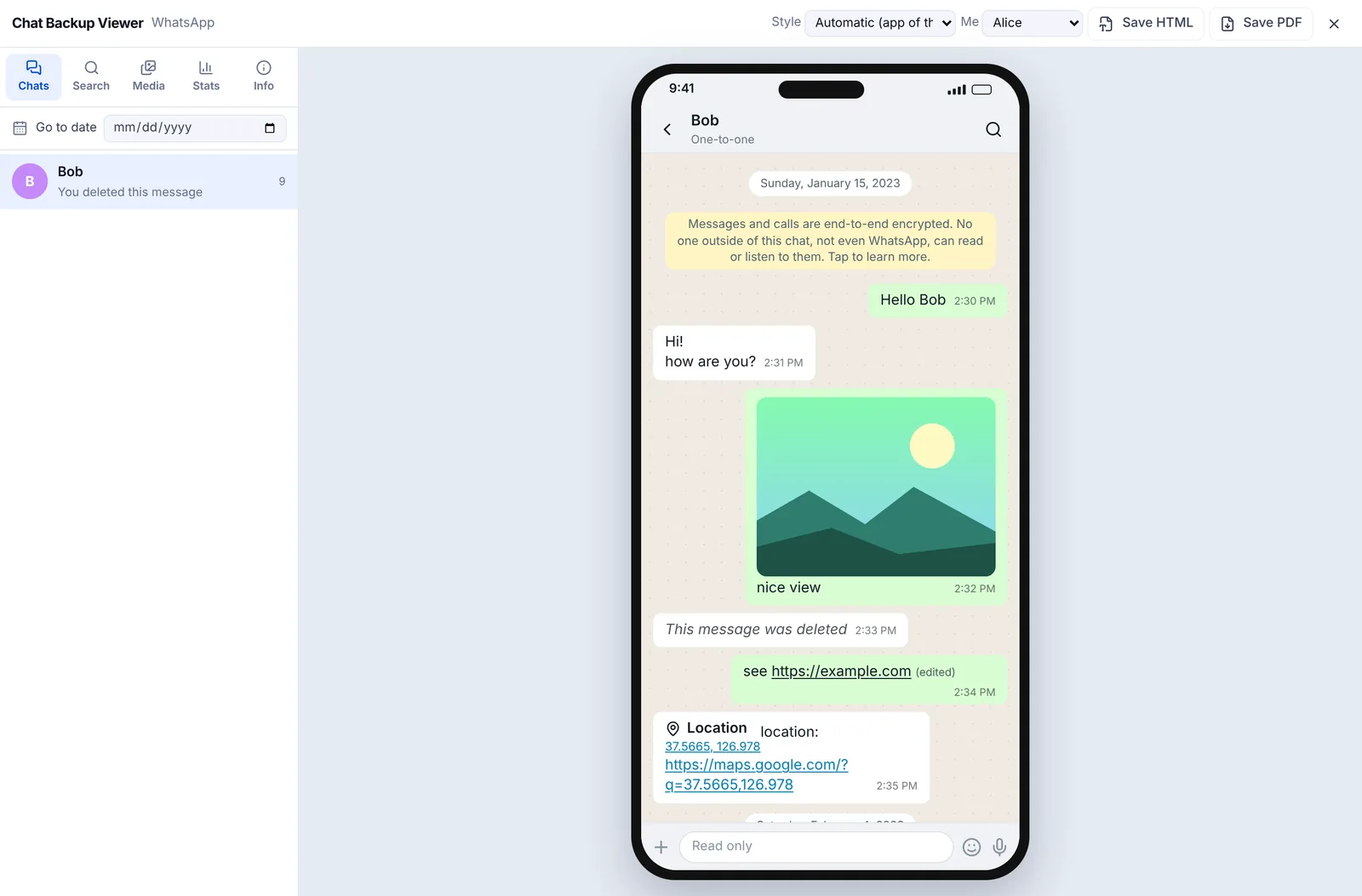
- WhatsApp: drop the zip as it is to see the photos, or the txt if you exported without media.
- Telegram: drop the export folder, or a zip of it. result.json and messages.html both work, so there is no need to export again as HTML. Photos you included show up on the Media tab.
- LINE: drop the txt. Photos appear only as a placeholder, because the file never had them.
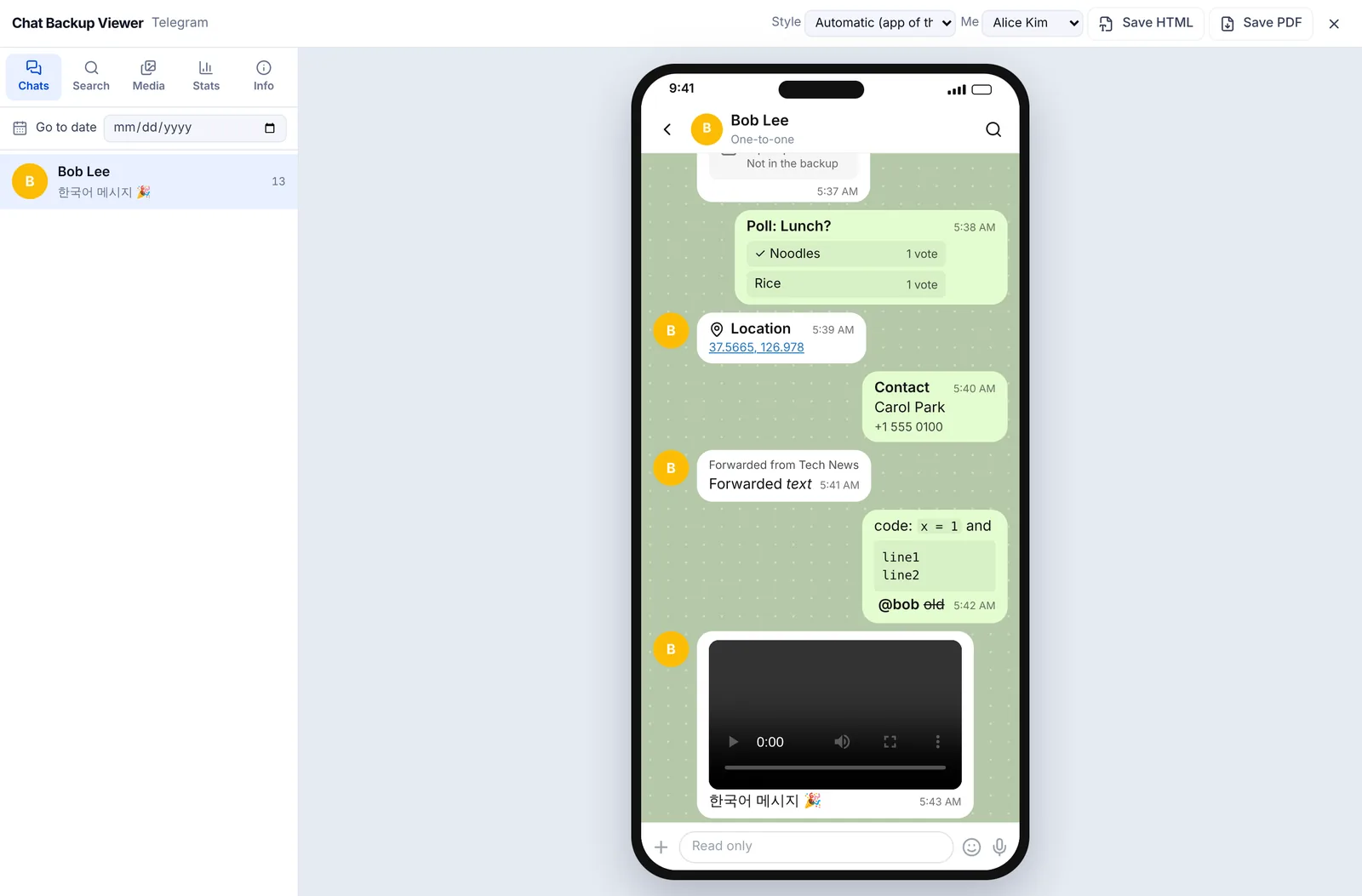
Choose your name under Me at the top and your bubbles move to the right. Use Search to find a word, Go to date to jump to a day, and Stats for message counts per person and charts by hour and weekday. Some exports, such as some Telegram HTML ones, don't record a time zone; a notice appears, and choosing the zone the chat was exported in puts the times right.
When photos are missing
- WhatsApp exported without media has no photos in it. Export again with media.
- Telegram only includes photos you ticked in the export window, and they live in folders beside the main file. Drop the whole folder.
- LINE txt files never contain photos, and no viewer can bring them back.
What it can't do
The viewer is read only. It can't edit or delete messages, can't put an export back into the app, and can't recover deleted chats. Discord and WeChat aren't supported yet. To keep a chat on paper, see how to save a chat as a PDF; for what an export is and isn't, see backup vs chat export.
WhatsApp is a trademark of Meta, Telegram of Telegram FZ-LLC, and LINE of LY Corporation. EZPZ File is not affiliated with any of them.
Questions
- I exported Telegram to JSON. How do I read it?
- Drop the folder with result.json, or a zip of it, onto the Chat Backup Viewer and it opens as a chat. You don't need to export again as HTML. (Source: Reddit r/Telegram)
- Why don't the images show in my Telegram messages.html?
- The photos are in folders next to messages.html, and only if you ticked them when exporting. Keep the export folder together and drop the whole folder into the viewer. (Source: Reddit r/Telegram)
- Can I make a WhatsApp export look like WhatsApp and save it as a PDF?
- Yes. Open the zip in the viewer, then use Save PDF. The PDF lists photos by name; use Save HTML with Include photos if you need the pictures. (Source: Reddit r/whatsapp)
- Can I export Telegram chats on my phone?
- Telegram's blog describes the export tool as part of Telegram Desktop. Install it on a computer, sign in to the same account and export from there.
Last updated October 27, 2026
