
An example of a size range
Many forms give a range rather than a single limit. This one was checked on 10 October 2026.
| Body | Document | Rule | Notice |
|---|---|---|---|
| NTA | Category certificate, Class X certificate and marksheet, PwD certificate, address proof | PDF, 50-300 KB | NEET (UG) 2026 Information Bulletin (8 February 2026), p.15 |
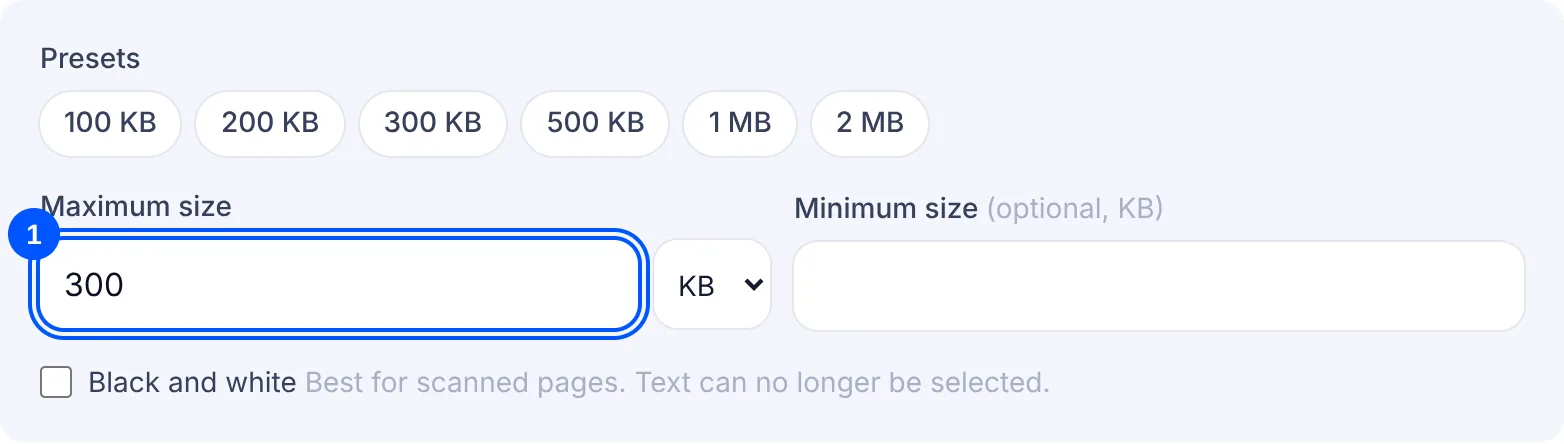
For these documents you would type 50 KB as the minimum and 300 KB as the maximum. If your form gives other numbers, type those.
How to set the right target
Copy the number exactly as the form gives it, and check the unit. 300 KB and 3 MB are very different targets, so set both the number and the unit next to it. If the form says “up to” or “not more than”, that number is the maximum. If it says “between”, it gives you a minimum and a maximum: fill in both boxes.
Leave a little room under the limit. Forms count 1 KB as either 1,000 or 1,024 bytes, and 1 MB as 1,000 or 1,024 KB, and they do not always say which. A target a few KB under the limit works either way: for example 290 KB when the form says 300 KB, or 950 KB when it says 1 MB.
The number you type decides how hard the tool has to work. A large target such as 2 MB is usually met by shrinking only the photos in the file, so the text stays selectable. A small target such as 150 KB for a long scan may need every page turned into an image at a lower resolution, and Black and white helps there. The result card shows which happened: the final KB, the number of pages and whether the text can still be selected.
Common limits have their own page with advice for that size: Compress PDF to 100KB for tight limits on scans, Compress PDF to 200KB for certificates and marksheets, and Compress PDF to 500KB for reports and longer files. The preset chips in the tool also fill in 100 KB, 200 KB, 300 KB, 500 KB, 1 MB or 2 MB with one tap.
If the target is small and the file is long, no setting will keep every page readable. When that happens, the tool gives you the smallest file it could make and says why. Cut the file into parts with Split PDF and compress each part to the same target, if the form lets you add more than one file.
Why your file is still rejected
- The unit was wrong. Typing 300 with MB selected instead of KB gives a file far over the form limit. Check the unit before you start.
- The minimum was left empty. When the form gives a range, a file under the lower number is refused just like one over the upper number. Fill in the minimum and check the final KB on the result card.
- One target was used for documents with different limits. When a form sets a different limit for each document, compress each group with its own target, one run after another.
- The document type is wrong. A PDF field does not take a JPG, and a photo field does not take a PDF. For photos and signatures, use the Compress image to size page, which always gives a JPG.
